 Skip to content
 Introduction to Bambu Studio
If you have ever explored the world of 3D printing, you already know that the slicer software you choose can make or break your entire workflow. Bambu Studio has quickly become one of the most talked-about names in the 3D printing community — and for very good reason. This powerful, intelligent, and user-friendly Bambu Studio software was built specifically to complement Bambu Lab’s ecosystem of high-performance 3D printers.
Whether you are a complete beginner who just unboxed your first Bambu Lab printer or a seasoned maker who has been slicing models for years, Bambu Studio offers something genuinely refreshing: a slicer that actually works in harmony with your hardware. From automated calibration suggestions to seamless AMS (Automatic Material System) integration, Bambu Studio was designed to take the friction out of 3D printing.
In this comprehensive guide, we will walk through everything you need to know — what Bambu Studio is, how to download it, the best settings for quality prints, how it compares to other slicers, and why it is the go-to choice for anyone using Bambu Lab printers. Let’s dive in.

2. What Is Bambu Studio Slicer?
At its core, a slicer is the software that converts a 3D model (usually a .STL, .3MF, or .OBJ file) into a series of instructions that a 3D printer can understand and execute. The Bambu Studio slicer does exactly that — but it goes far beyond what most traditional slicers offer.
Bambu Studio is built on an open-source foundation derived from PrusaSlicer (which itself is based on Slic3r), but Bambu Lab has made substantial modifications and additions to tailor it specifically for their printer lineup. The result is a slicer that feels modern, responsive, and deeply integrated with Bambu Lab’s hardware.
Unlike traditional slicers where you often need to manually configure dozens of settings to get a reliable print, Bambu Studio comes pre-loaded with optimized profiles for every Bambu Lab printer and a wide range of materials. This means you can go from opening a model to starting a print in just a few clicks — without needing a degree in engineering.
Key architectural highlights of the Bambu Studio slicer include:
- A modern, clean graphical user interface
- Deep hardware integration with Bambu Lab printers via Wi-Fi and USB
- Cloud-based print management through Bambu Cloud
- Real-time print monitoring and remote control
- Native support for
.3MFproject files that preserve all settings
This is not just a slicer — it is a complete print management platform.
3. Key Features of Bambu Studio
Let’s get into the details. The Bambu Studio features list is genuinely impressive, and understanding what is available helps you get the most out of your printer.
Smart Slicing Engine Bambu Studio uses an optimized slicing algorithm that is noticeably fast. Large, complex models that might take minutes to slice in other software process in seconds with Bambu Studio, thanks to multi-threaded slicing that takes full advantage of modern CPUs.
AMS Integration The AMS (Automatic Material System) is one of Bambu Lab’s standout hardware features, and Bambu Studio supports it natively and deeply. You can assign different filament colors and materials to different parts of your model directly in the slicer, and Bambu Studio will automatically generate all the necessary toolchange sequences, purge volumes, and wipe tower geometry.
Advanced Support Structures Bambu Studio offers both traditional tree supports and a proprietary “auto support” algorithm that intelligently places supports only where they are truly needed. This reduces material waste and significantly improves surface quality on supported faces.
Organic Supports (Tree Supports) The tree support generation in Bambu Studio is among the best available, producing thin, branching structures that are easy to remove and leave minimal marks on the print surface.
Variable Layer Height You can paint variable layer heights directly onto your model in the 3D viewport, allowing you to use coarse layers in simple areas and fine layers only where detail matters — reducing print time without sacrificing quality.
Seam Control Bambu Studio gives you fine-grained control over where the seam (the Z-axis join line) is placed on each layer, including options to align it to a corner, scatter it randomly, or paint custom seam positions.
Fuzzy Skin For decorative or functional prints where you want a rough, textured outer surface, Bambu Studio’s fuzzy skin modifier lets you apply this effect selectively using the model painter tool.
Network Printing and Monitoring Send prints directly to your Bambu Lab printer over Wi-Fi, monitor progress via the built-in camera feed, and receive push notifications when your print is complete — all from within Bambu Studio.
Bambu Studio Features Summary:
| Feature | Description |
|---|---|
| Smart Slicing | Multi-threaded fast slicing engine |
| AMS Integration | Native multi-material and multi-color support |
| Tree Supports | Organic auto-support generation |
| Variable Layer Height | Paint-on layer resolution control |
| Network Printing | Wi-Fi print sending and live monitoring |
| Seam Control | Precise placement of Z-seam lines |
| Fuzzy Skin | Selective textured surface modifier |
| Cloud Integration | Bambu Cloud project storage and remote access |
4. How to Download and Install Bambu Studio
Getting started with your Bambu Studio download is straightforward. The software is available for Windows, macOS, and Linux, and it is completely free.
Step 1 — Visit the Official Bambu Lab Website Navigate to the official Bambu Lab website and go to the Software section. You will find the latest stable release of Bambu Studio available for download. Always download from the official source to ensure you have the most up-to-date and secure version.
Step 2 — Choose Your Operating System Bambu Studio supports:
- Windows 10 / 11 (64-bit)
- macOS 10.14 Mojave and newer (both Intel and Apple Silicon)
- Linux (AppImage format, compatible with major distributions)
Step 3 — Run the Installer On Windows, run the .exe installer and follow the on-screen prompts. On macOS, open the .dmg file and drag Bambu Studio to your Applications folder. On Linux, make the AppImage executable and run it directly.
Step 4 — Log In or Create a Bambu Account Bambu Studio works best when connected to a Bambu account. This enables cloud features, remote monitoring, and syncing of your printer profiles. Creating an account is free and only takes a minute.
Step 5 — Add Your Printer On first launch, Bambu Studio will guide you through adding your Bambu Lab printer. You can connect via the local network (LAN mode) or through the cloud. Once connected, your printer’s profiles and capabilities are automatically loaded.
Platform Compatibility:
| Platform | Minimum Version | Notes |
|---|---|---|
| Windows | Windows 10 64-bit | .exe installer |
| macOS | macOS 10.14 Mojave | Intel & Apple Silicon |
| Linux | Major distributions | AppImage format |
5. Best Bambu Studio Settings for High-Quality Prints
Finding the right Bambu Studio settings can feel overwhelming at first — there are a lot of options. The good news is that Bambu Studio’s built-in presets are already very well-tuned for Bambu Lab printers, so you are starting from a strong baseline. Here are the most important settings to understand and adjust.
Layer Height For standard prints, a layer height of 0.2mm offers an excellent balance between speed and quality. For highly detailed miniatures or intricate parts, dropping to 0.1mm or even 0.05mm (on compatible printers) will produce noticeably smoother surfaces. For large, fast prints where detail is less important, 0.3mm or 0.4mm is perfectly acceptable.
Print Speed Bambu Lab printers are engineered for high-speed printing. Bambu Studio’s default speed profiles (Standard, Sport, Ludicrous) are calibrated for the specific dynamics of each printer model. For general use, the Standard profile reliably produces quality results. The Sport and Ludicrous profiles can be used with well-tuned filament profiles to dramatically reduce print times.
Infill Pattern and Density
- 15–20% infill is suitable for decorative objects
- 30–40% infill is recommended for functional parts
- Grid, Gyroid, and Cubic are the most commonly used infill patterns in Bambu Studio
- Gyroid is particularly popular for flexible parts
Wall Count (Perimeters) A minimum of 3 walls is recommended for most prints. For structural parts, increasing to 4 or 5 walls significantly improves strength without dramatically increasing print time.
Top/Bottom Layers Use at least 4–5 top and bottom layers to ensure a solid surface with no gaps. For prints with flat top surfaces that need to look perfect, increasing to 6–7 layers provides an excellent finish.
Support Settings Enable supports only when required. Tree supports are generally preferred for organic shapes, while normal (grid) supports work well for flat overhangs. Set the support interface layer to 0.2mm gap for easy removal.
Recommended Settings Overview:
| Setting | Recommended Value | Use Case |
|---|---|---|
| Layer Height | 0.2mm | General purpose |
| Wall Count | 3–4 | Standard to functional |
| Infill Density | 15–40% | Decorative to functional |
| Top/Bottom Layers | 4–6 | Surface quality |
| Support Type | Tree (Auto) | Organic shapes |
| Speed Profile | Standard | Reliable everyday printing |
6. Bambu Studio Tutorial for Beginners
If you are new to 3D printing or just new to Bambu Studio specifically, this Bambu Studio tutorial will walk you through slicing your very first model from start to finish. The process is surprisingly approachable.
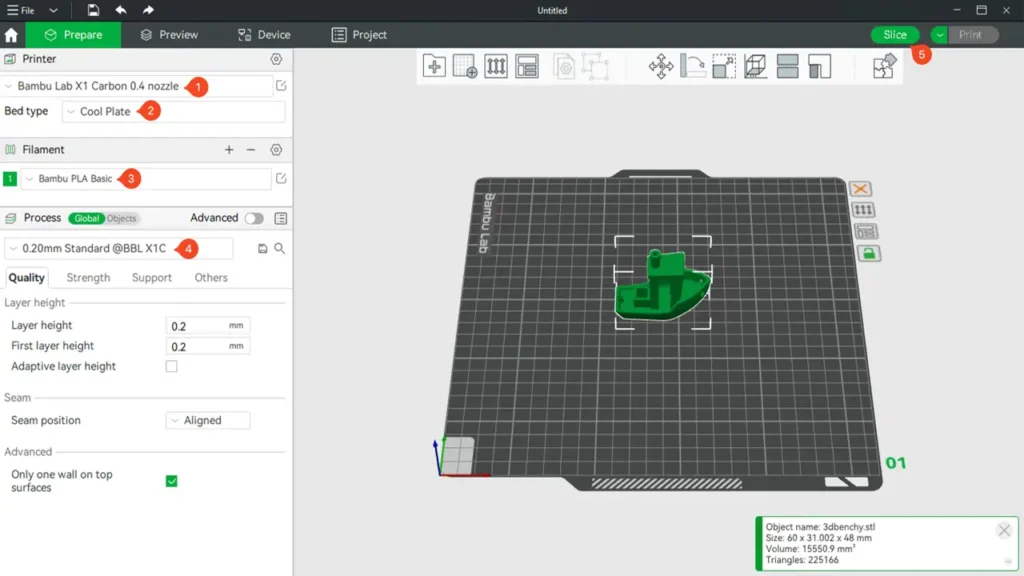
Step 1 — Open Bambu Studio and Create a New Project Launch Bambu Studio. You will see the main workspace with a virtual build plate in the center. At the top left, click the printer selector and choose your Bambu Lab printer model. Then select your preferred nozzle size (typically 0.4mm) and your filament type (PLA is a great starting point).
Step 2 — Import Your 3D Model Click the “+” icon in the toolbar or drag and drop a .STL or .3MF file directly onto the build plate. Your model will appear in the workspace. If it looks oddly sized, use the Scale tool on the right side to adjust dimensions.
Step 3 — Orient Your Model Click the Rotate tool and orient your model so that the flattest, most stable face is on the build plate. This minimizes the need for supports and improves print quality. Bambu Studio also has an Auto Orient feature that does this for you automatically.
Step 4 — Choose Your Print Profile On the right panel, select a print profile. For beginners, the 0.20mm Standard Quality preset is ideal — it gives good results without being too slow. You can also select a speed preset from the dropdown (Standard is recommended).
Step 5 — Generate Supports (If Needed) If your model has overhangs greater than approximately 45 degrees, you will need supports. Click Supports in the right panel and select Auto (Tree) for organic models or Normal for models with flat overhangs.
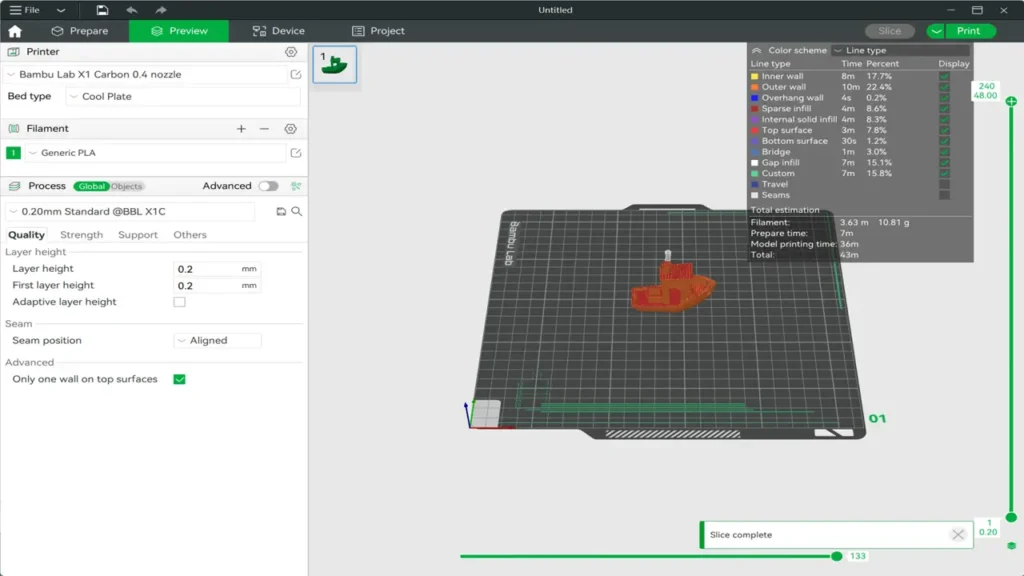
Step 6 — Slice the Model Click the large Slice button. Within seconds, Bambu Studio will process your model and display a full preview with layer-by-layer visualization. Use the layer slider to inspect the sliced result from bottom to top.
Step 7 — Send to Printer Once satisfied, click Print. If your printer is connected via Wi-Fi, the job will be sent directly to it. You can also export to a microSD card for offline printing using the Export option.
That’s it! Your first print is underway.
7. Bambu Studio vs Cura – Which Is Better?
The Bambu Studio vs Cura debate is one of the most frequently asked questions in the 3D printing community. Both are excellent slicers, but they are designed with different priorities and ecosystems in mind.
Ecosystem and Compatibility Ultimaker Cura is an open-source slicer compatible with hundreds of different 3D printer brands and models. It is a universal tool. Bambu Studio, by contrast, is purpose-built for Bambu Lab printers and is deeply optimized for that hardware.
Ease of Use Bambu Studio is generally considered more beginner-friendly out of the box. The default profiles are excellent, the interface is clean and modern, and many complex processes (like AMS color assignments) are handled elegantly through visual tools. Cura has a larger community and more third-party plugins, but its interface can feel more overwhelming to newcomers.
Slicing Speed Bambu Studio is significantly faster at slicing compared to Cura, particularly for complex models. This is partly due to architectural differences and partly because Bambu Studio is optimized for specific hardware rather than a generic range of printers.
Feature Depth Cura has an enormous plugin ecosystem and a longer history, which means more community-developed tools and a larger knowledge base. Bambu Studio, however, is catching up rapidly and has features like the built-in camera feed and cloud monitoring that Cura simply does not offer natively.
Verdict If you own a Bambu Lab printer, Bambu Studio is the clear recommendation. It is specifically designed for your hardware, produces excellent results out of the box, and the AMS integration alone makes it indispensable for multi-material printing. If you own multiple different printer brands, Cura’s universality might make it a better fit for a unified workflow.
Comparison Table:
| Feature | Bambu Studio | Ultimaker Cura |
|---|---|---|
| Printer Compatibility | Bambu Lab only | Universal (hundreds of brands) |
| Ease of Use | Very beginner-friendly | Moderate learning curve |
| Slicing Speed | Very fast | Moderate |
| AMS / Multi-Material | Native, deeply integrated | Plugin required |
| Plugin Ecosystem | Growing | Very large |
| Remote Monitoring | Built-in (Wi-Fi + Cloud) | Not native |
| Price | Free | Free |
8. Filament Profiles and Material Management
One of the most practical and time-saving aspects of Bambu Studio is its comprehensive library of Bambu Studio filament profiles. Rather than requiring you to manually dial in temperatures, speeds, and cooling settings for every new material, Bambu Studio ships with a large collection of pre-configured profiles for common and exotic filaments alike.
What Is a Filament Profile? A filament profile is a collection of print parameters specifically tuned for a particular filament brand, type, and color. This includes nozzle temperature, bed temperature, cooling fan speed, retraction distance, flow rate, and more. When you select a filament profile in Bambu Studio, all of these parameters are applied automatically.
Available Filament Categories Bambu Studio’s filament profile library covers:
- PLA — The most common and beginner-friendly material
- PETG — A durable, slightly flexible filament great for functional parts
- ABS / ASA — High-temperature, UV-resistant engineering materials
- TPU — Flexible filaments for gaskets, phone cases, and wearables
- PA (Nylon) — High-strength engineering plastic
- PC (Polycarbonate) — Extremely tough, high-temperature resistant
- Support Filaments (PVA, HIPS) — Soluble or breakaway support materials for multi-material printing
- Composite Filaments — Carbon fiber, glass fiber, and metal-filled variants
Bambu-Branded Filament Profiles Bambu Lab produces its own line of filaments (sold as “Bambu” brand), and these materials have profiles that are specifically validated on Bambu Lab hardware. Using Bambu filament with the corresponding Bambu Studio filament profile gives you the highest degree of reliability and print quality.
Community and Third-Party Profiles In addition to the built-in profiles, Bambu Studio allows you to import and modify profiles for third-party filament brands. The Bambu Lab community has developed and shared a large number of custom profiles for popular filaments from brands such as eSUN, Prusament, Polymaker, and others.
Filament Types and Key Parameters:
| Filament Type | Nozzle Temp | Bed Temp | Key Property |
|---|---|---|---|
| PLA | 190–220°C | 35–55°C | Easy to print, biodegradable |
| PETG | 230–250°C | 70–85°C | Durable, food-safe options |
| ABS | 240–260°C | 90–110°C | Heat resistant, engineering use |
| TPU | 220–240°C | 40–60°C | Flexible, rubber-like |
| PA (Nylon) | 250–270°C | 70–90°C | High strength, wear resistant |
Managing your filament inventory is also made easier through the AMS interface in Bambu Studio. When you load spools into the AMS, Bambu Studio can track which material and color is in each slot, making multi-material project setup almost entirely visual and intuitive.
9. Multi-Color Printing with Bambu Studio
Bambu Studio multi color printing is one of the most exciting capabilities the platform offers, and it is more accessible than you might think. Thanks to the deep integration between Bambu Studio and the AMS hardware, creating vivid, multi-colored 3D prints is genuinely within reach — even for beginners.
How Multi-Color Printing Works The AMS (Automatic Material System) is a filament hub that can hold up to four spools of filament simultaneously. During a print, the AMS automatically feeds the correct filament to the printer based on the color assignments you set in Bambu Studio. When a color change is needed, the old filament is retracted and the new one is loaded — seamlessly and automatically.
Assigning Colors in Bambu Studio There are two main methods for assigning colors in Bambu Studio:
- By Object/Part — If your model is composed of multiple mesh objects (for example, a multi-body model from a CAD program), you can assign a different filament to each body. Simply select the object in the viewport and choose a filament slot from the right panel.
- Painted Color Assignment (Multi-Color Paint Tool) — For single-mesh models, Bambu Studio includes a powerful Paint tool that lets you “paint” colors directly onto the model surface in the 3D viewport. You can use spherical brush sizes, face selection, and fill tools to precisely define which surfaces print in which color.
Wipe Tower When changing filaments, a small amount of the previous color remains in the nozzle and must be purged before the new color is printed cleanly. Bambu Studio automatically generates a Wipe Tower (also called a Purge Tower) on the build plate to handle this. You can adjust the wipe tower position, size, and purge volumes in the settings.
Flush Volumes Bambu Studio allows you to configure how much material is flushed when switching between specific color pairs. Switching from a dark color to a light color typically requires more flushing than going from light to dark. The software includes a Flush Volume matrix where you can fine-tune these values for each color pair.
Tips for Great Multi-Color Prints:
- Use filaments from the same material family (e.g., all PLA) for best layer bonding across color boundaries
- Plan your color zones with clear separations — very thin color boundaries may not be clean
- Increase purge volumes slightly when switching between drastically different colors
- Position your wipe tower in a corner of the build plate to keep it out of the way
- Use the Preview mode after slicing to inspect color transitions layer by layer
Multi-color printing with Bambu Studio transforms what is possible with desktop 3D printing. What used to require post-processing, painting, or multiple print runs can now be accomplished in a single, automated print session.
10. Why Bambu Studio Is Perfect for Bambu Lab Printers
After exploring every aspect of Bambu Studio, it is clear why Bambu Studio for Bambu Lab printers represents such a compelling combination. The software and hardware were designed together, and that shows in every interaction.
Seamless Hardware Integration Every Bambu Lab printer — from the entry-level A1 Mini to the flagship X1 Carbon — has a profile in Bambu Studio that is precisely calibrated for its specific build volume, motion system, and capabilities. You do not need to figure out the right settings for your printer; they are already there, tested and validated.
Continuous Updates Bambu Lab updates Bambu Studio regularly, adding new features, improving slicing algorithms, and adding support for new printer models and filament types. These updates are delivered directly through the software’s built-in update mechanism, making it easy to stay current.
Community and Support The Bambu Lab community has grown rapidly, and Bambu Studio is at the center of that ecosystem. The Bambu Lab Wiki, user forums, and social groups are filled with tips, custom profiles, and tutorials created by experienced users. This makes it easy to find help when you need it and to share your own discoveries.
Print Quality and Reliability The combination of Bambu Studio’s smart slicing, pre-validated profiles, and Bambu Lab’s hardware engineering means that print quality and reliability are consistently excellent. You spend less time troubleshooting failures and more time making things.
One Platform, Everything Included With Bambu Studio, you have your slicer, your printer manager, your remote monitoring tool, your filament profile library, and your cloud storage all in one place. There is no need to juggle multiple pieces of software or manage complex integrations.
Whether you are printing functional engineering parts, creative art pieces, tabletop miniatures, or multi-color decorations, Bambu Studio gives you the tools and the confidence to produce great results. For anyone in the Bambu Lab ecosystem, it is not just the recommended slicer — it is the essential one.
Summary
Bambu Studio stands out as a genuinely excellent slicer that has been thoughtfully designed for the modern 3D printing experience. Its smart features, deep AMS integration, comprehensive filament profile library, and seamless hardware connection make it the ideal choice for anyone using Bambu Lab printers. Whether you are just starting out or pushing the limits of what your printer can do, Bambu Studio scales with your ambitions — making great 3D printing more accessible than ever before.
Discover more from bestchina3dprinters.com
Subscribe to get the latest posts sent to your email.
