 Skip to content
 1. What Is CHITUBOX Slicer
If you’ve ever explored the world of resin 3D printing, you’ve almost certainly come across the name CHITUBOX. It is one of the most widely used and recognized slicer applications available today for SLA (Stereolithography), DLP (Digital Light Processing), and LCD (Liquid Crystal Display) resin 3D printers.
But what exactly does a slicer do? Think of it this way: your 3D model exists as a digital file — typically in STL or OBJ format — that describes a solid three-dimensional object. Before your printer can bring that object to life in resin, it needs instructions. It needs to know how to build the model layer by layer, from the bottom up. A slicer takes your 3D model and “slices” it into hundreds or even thousands of thin horizontal layers, generating the precise exposure maps and movement instructions your printer needs to cure each layer of liquid resin accurately.
The CHITUBOX slicer does all of this, and it does it remarkably well. It acts as the essential bridge between your creative vision and the physical print. Without a reliable resin 3D printing slicer, even the most beautifully designed model will fail at the print stage. Exposure times, layer thickness, support structures, lift speeds — all of these critical parameters are handled inside the slicer before a single drop of resin is cured.
What sets CHITUBOX apart from the competition is its combination of an approachable interface, powerful support generation tools, a broad library of compatible printers, and the availability of both a free and a professional version. Whether you’re a beginner just getting started with resin printing or a seasoned professional producing detailed miniatures or engineering prototypes, CHITUBOX has tools tailored to your needs.
In this comprehensive guide, we’ll walk you through everything you need to know: the history of the software, the differences between its free and paid tiers, how to download and install it, how to navigate the interface, which settings matter most, and how it stacks up against the competition.
Anycubic Photon Workshop
3D Slicer Software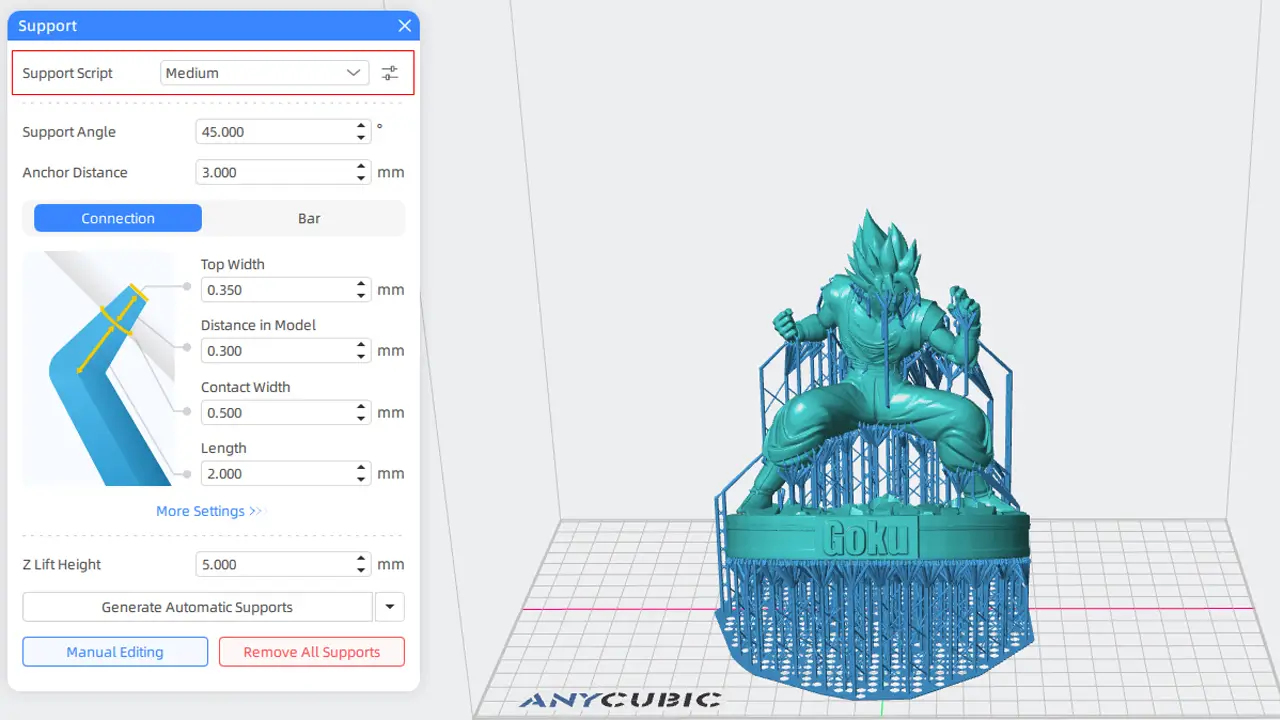
Professional Resin Slicer
Official slicing software for Anycubic resin printers. Intelligent support generation, hollowing tools, and optimized print settings for maximum success rate and detail quality.
2. History of CHITUBOX Software
To understand where CHITUBOX stands today, it helps to know where it came from. The CHITUBOX software was developed by CBD-Tech, a technology company based in Shenzhen, China, that focuses on 3D printing software and hardware solutions. CBD-Tech officially launched CHITUBOX in 2018, and the software quickly gained traction in the rapidly growing desktop resin printing community.
At the time of its release, the resin printing market was undergoing a transformation. Affordable LCD-based resin printers from manufacturers like Anycubic and Elegoo were becoming accessible to hobbyists and professionals alike. There was a clear demand for a dedicated slicer that understood the unique requirements of MSLA (Masked Stereolithography) printing — and CHITUBOX filled that gap.
From its earliest versions, CHITUBOX distinguished itself by offering native support for the proprietary file formats used by popular consumer resin printers, particularly the .ctb and .cbddlp formats. This was crucial because many printers at the time relied on these specific formats, and having a slicer that could output them natively was a significant advantage.
Over the following years, CBD-Tech continued to refine and expand the chitubox software. Version updates introduced improved support algorithms, better slicing performance, expanded printer compatibility, and eventually the introduction of CHITUBOX Pro — a premium tier targeting professional and power users. The company also worked closely with printer manufacturers to ensure that CHITUBOX profiles were accurate and up to date for the latest hardware releases.
Today, CHITUBOX is recognized globally as one of the leading slicers in the resin printing ecosystem, with millions of downloads and a large, active community of users sharing tips, profiles, and support settings across forums, social media groups, and YouTube channels.

3. CHITUBOX Basic Overview
For most new users, the first experience with CHITUBOX will be through CHITUBOX Basic — the free version of the software. And it’s genuinely impressive what you get at no cost.
CHITUBOX Basic offers a full-featured slicing environment that covers everything a resin printer needs to produce quality prints. Here is a breakdown of the core features available in the free version:
| Feature | CHITUBOX Basic |
|---|---|
| Price | Free |
| STL / OBJ Import | ✓ |
| Auto Support Generation | ✓ |
| Manual Support Editing | ✓ |
| Layer Preview | ✓ |
| Printer Profile Library | ✓ |
| Hollow & Infill Tools | ✓ |
| Output Formats (.ctb, .cbddlp) | ✓ |
| Anti-Aliasing | ✓ (basic) |
| Resin Volume Estimation | ✓ |
The chitubox basic version is more than capable of handling typical hobby and semi-professional workflows. You can import your model, orient it for optimal printing, add supports both automatically and manually, configure your exposure and lift settings, and export a print-ready file in minutes. The layer preview tool alone is incredibly valuable — it lets you scroll through each slice of your model before printing, helping you catch potential issues before you waste resin.
For beginners, CHITUBOX Basic is the ideal starting point. It removes the financial barrier to entry and still delivers a polished, professional experience.
4. CHITUBOX Pro Features
For users who need more control, more automation, and more advanced tools, CHITUBOX Pro offers a comprehensive upgrade. The Pro version is a paid subscription and is aimed at professional users, print farms, product designers, dental technicians, jewelry makers, and anyone who demands the highest level of print precision and workflow efficiency.
Here’s what makes chitubox pro stand out from the Basic version:
| Feature | CHITUBOX Basic | CHITUBOX Pro |
|---|---|---|
| Price | Free | Paid (Annual License) |
| Advanced Support Algorithms | — | ✓ |
| Uniform Slicing | — | ✓ |
| Variable Layer Thickness | — | ✓ |
| Enhanced Anti-Aliasing | Basic | Advanced (4x/8x) |
| Batch Slicing | — | ✓ |
| Print Time Optimizer | — | ✓ |
| Cloud Profile Storage | — | ✓ |
| Priority Customer Support | — | ✓ |
One of the most notable additions in chitubox pro is the variable layer thickness feature, which allows different sections of your model to be sliced at different layer heights. For example, flat surfaces with less detail can be sliced thicker to save time, while highly detailed areas are sliced thinner for maximum resolution. This alone can dramatically reduce print times without sacrificing quality where it matters.
The advanced anti-aliasing options in Pro help smooth out the staircase effect that can appear on curved surfaces in resin prints, resulting in cleaner, more professional-looking output. For professional applications — dental models, jewelry casting, architectural miniatures — these refinements are not just nice to have, they are essential.

5. How to Download CHITUBOX
Getting started with CHITUBOX is simple, and the chitubox download process is straightforward. The software is available directly from the official CBD-Tech website, and both Basic and Pro versions can be downloaded from the same location.
Platform Support:
CHITUBOX supports all three major desktop operating systems:
- Windows — Windows 7, 8, 10, and 11 (64-bit recommended)
- macOS — macOS 10.13 (High Sierra) and later
- Linux — Ubuntu and other major distributions (64-bit)
This broad platform compatibility is a significant advantage, as some competing slicers are Windows-only or have limited macOS support.
Installation Steps:
- Visit the official CHITUBOX website (chitubox.com) and navigate to the Download section.
- Select your operating system from the available options.
- Choose between CHITUBOX Basic (free) or CHITUBOX Pro (requires license purchase).
- Download the installer file appropriate for your system.
- Run the installer and follow the on-screen instructions.
- Launch CHITUBOX and, if prompted, log in or create a free CBD-Tech account.
- Select or add your printer profile from the built-in printer library.
The installation is quick — typically under five minutes on a modern system. Once installed, CHITUBOX will prompt you to set up your printer profile, which is the first step in configuring the software for your specific hardware. The built-in printer library contains hundreds of pre-configured profiles, so in most cases you simply search for your printer model and select it.
For the chitubox download of the Pro version, you’ll need an active license key, which is managed through your CBD-Tech account. Licenses are tied to a specific number of devices (typically one or two), so if you’re switching machines, you can deactivate the license on the old device and activate it on the new one through your account dashboard.
6. Interface and Workflow
One of the most frequently praised aspects of CHITUBOX is how accessible its interface is for newcomers, while still offering the depth that experienced users need. This section serves as a practical chitubox tutorial walkthrough for first-time users.
The Main Interface Panels:
When you first open CHITUBOX, you’ll see a clean 3D viewport in the center, a toolbar along the left side, and a settings panel on the right. The top menu bar gives you access to file management and printer configuration.
Step-by-Step Workflow:
Step 1 — Add Your Printer Profile Before importing any model, configure your printer. Go to the Settings panel and select or add your printer. CHITUBOX will load the correct build plate dimensions, resolution, and default exposure settings for your machine.
Step 2 — Import Your STL File Click the “Add” button (or drag and drop) to import your 3D model. CHITUBOX supports STL, OBJ, and several other common 3D file formats. Your model will appear on the virtual build plate.
Step 3 — Orient Your Model Model orientation is one of the most critical decisions in resin printing. Unlike FDM printing, resin models print upside down — they hang from the build plate as it lifts out of the resin vat layer by layer. Poor orientation can lead to suction cup failures, support issues, and delamination. CHITUBOX offers rotation tools and an auto-orientation feature that analyzes your model and suggests the optimal angle.
Step 4 — Hollow the Model (Optional) If you’re printing a large solid model, hollowing it out can save a significant amount of resin and reduce print time. CHITUBOX’s hollow tool lets you specify the wall thickness and automatically generates a hollow shell. Don’t forget to add drain holes so uncured resin can escape from inside the model.
Step 5 — Add Supports Click the Supports tab and choose between automatic and manual support modes. Automatic support generation analyzes your model geometry and places supports where the slicer determines they are needed. You can then switch to manual mode to add, remove, or adjust individual supports.
Step 6 — Configure Print Settings In the right-hand settings panel, configure your layer height, normal exposure time, bottom exposure time, lift speed, and other parameters. These settings vary depending on your resin type and printer.
Step 7 — Slice and Export Click the Slice button. CHITUBOX will process your model and generate a layer-by-layer preview. Review the preview using the layer slider to check for any issues. When satisfied, click Save to export the sliced file in your printer’s supported format (e.g., .ctb) and transfer it to your printer via USB or SD card.
This chitubox tutorial workflow covers the essential steps from start to finish and takes most users only 10–15 minutes to complete once they’re familiar with the interface.
Polimerukr.com
Ukraine
3D Printing Materials & Supplies
Your trusted source for high-quality 3D printing materials in Ukraine. Wide selection of filaments, resins, and accessories for all printer types with fast local shipping.
7. Best CHITUBOX Settings for Resin Printing
Getting your chitubox settings dialed in correctly is the difference between a successful print and a failed one. Resin printing is more sensitive to settings than FDM printing, so understanding what each parameter does is critical.
Key Settings Explained:
| Setting | Typical Range | Effect |
|---|---|---|
| Layer Height | 0.02mm – 0.10mm | Controls detail resolution and print time |
| Normal Exposure Time | 1.5s – 4s (LCD) | Cures each regular layer of resin |
| Bottom Exposure Time | 25s – 60s | Adheres first layers firmly to build plate |
| Bottom Layers | 3 – 8 layers | Number of over-exposed base layers |
| Lift Speed | 1mm/s – 4mm/s | Speed at which build plate lifts between layers |
| Lift Distance | 5mm – 8mm | How far plate rises before descending for next layer |
| Rest Time Before Lift | 0s – 2s | Pause after exposure to allow resin to settle |
| Anti-Aliasing | Off / 2x / 4x / 8x | Smooths pixel edges on curved surfaces |
Layer Height is perhaps the most fundamental setting. A layer height of 0.05mm (50 microns) is a common starting point that balances detail and print time. For highly detailed miniatures, 0.02mm–0.03mm is preferred. For faster, less critical prints, 0.08mm–0.10mm can work well.
Exposure Time must be tuned to your specific resin and UV light source. Over-exposure causes blooming (loss of fine detail) and elephant foot (flared base), while under-exposure leads to layer delamination and failed prints. Most resin manufacturers provide recommended exposure times that serve as a starting point for your chitubox settings.
Lift Speed affects both print quality and print time. A slower lift speed reduces the suction forces between the cured layer and the FEP film at the bottom of the vat, reducing the risk of layer separation on large cross-section prints. A faster lift speed saves time but may introduce stress on supports and thin features.
Bottom Exposure Time is set much higher than normal exposure to ensure the first few layers bond extremely well to the build plate. Without strong adhesion at the base, your entire print can detach mid-print — one of the most frustrating and wasteful failures in resin printing.
Always test your settings with a calibration print before committing to a long, resin-intensive print job. There are well-known community calibration tests (such as the Exposure Validation Matrix) that can help you dial in optimal exposure times quickly.
8. Support Generation System
Supports are the unsung heroes of resin printing. Because resin models cure while hanging upside down from the build plate, any overhanging section of a model that isn’t connected to the plate or a previously cured layer needs to be held in place by support structures. Without them, overhangs will droop, sag, or detach entirely during printing.
The chitubox supports generation system is one of the software’s strongest features, and it offers both automatic and manual modes.
Automatic Support Generation:
CHITUBOX’s automatic support algorithm analyzes your model’s geometry and identifies areas that overhang beyond a specified angle threshold (typically 45 degrees). It then populates these areas with a network of support structures. The algorithm considers factors like island detection (isolated floating sections), overhang severity, and the density of the support network.
You can customize the automatic supports through several parameters:
- Support Density — how many supports are generated
- Top Contact Point Size — the diameter of the point where the support meets the model (smaller = easier to remove, but less secure)
- Bottom Contact Point Size — the size of the base of the support structure
- Support Height — minimum and maximum support column lengths
- Support Type — light, medium, or heavy support structures
Manual Support Editing:
After running auto supports, you can switch to manual mode to fine-tune the placement. In manual mode, you can click anywhere on the model to add a support, click existing supports to remove them, and drag contact points to reposition them. This level of control is essential for complex models where the automatic algorithm may over-support some areas and under-support others.
Tips for Better Support Placement:
- Position contact points on areas that will be hidden after post-processing (undersides, interior faces)
- Use light supports for delicate features like jewelry or facial details
- Use heavy supports for large, flat overhangs and dense cross-sections
- Always check the island detection warning in CHITUBOX — it highlights unsupported floating sections with a visual indicator
The chitubox supports generation system strikes a good balance between automation and manual control, making it accessible for beginners while offering the granularity experienced users need.

9. Compatible Resin 3D Printers
One of CHITUBOX’s greatest practical strengths is its enormous list of chitubox compatible printers. The software maintains an extensive built-in library of printer profiles that covers the most popular brands and models in the consumer and professional resin printing market.
Major Compatible Brands:
| Brand | Notable Models | Technology |
|---|---|---|
| Anycubic | Photon Mono, Photon Ultra, Photon M3 | MSLA / DLP |
| Elegoo | Mars 3, Mars 4, Saturn 3, Saturn 4 Ultra | MSLA |
| Phrozen | Sonic Mini 8K, Sonic Mega 8K | MSLA |
| Creality | Halot One, Halot Mage | MSLA |
| Longer | Orange 4K, Orange 10 | MSLA |
| Peopoly | Phenom Noir, Phenom XXL | MSLA |
| EPAX | X1, X10 | MSLA |
Anycubic and Elegoo are the two most popular brands among hobbyist resin printer owners, and both are very well supported by CHITUBOX. Profile data for these printers — including build volume dimensions, native resolution, and recommended default settings — is maintained by CBD-Tech with input from the manufacturers themselves.
Phrozen printers are known for their high-resolution 8K screens and have strong representation in CHITUBOX’s library as well. For professional and large-format printing, brands like Peopoly and EPAX are also included.
If your printer model doesn’t appear in the built-in library, CHITUBOX allows you to create a custom printer profile by manually entering your machine’s specifications. You can also import profiles shared by the community.
The breadth of chitubox compatible printers is one of the key reasons the software has become the default choice for so many resin printing users. If you buy a new resin printer from virtually any mainstream manufacturer, there’s an excellent chance CHITUBOX will have a ready-to-use profile for it.
10. Is CHITUBOX the Best Resin Slicer?
So, after exploring all of its features, settings, and capabilities, where does CHITUBOX truly stand in the world of chitubox resin slicer software? Is it the best option available?
The honest answer, as with most software comparisons, is: it depends on your needs — but it’s absolutely one of the top choices.
CHITUBOX vs. Lychee Slicer
Lychee Slicer is perhaps CHITUBOX’s most direct competitor. It also offers a free tier and a paid “Pro” tier, and it has built a strong following thanks to its polished interface and powerful auto-support algorithms.
| Feature | CHITUBOX | Lychee Slicer |
|---|---|---|
| Free Version | ✓ Full features | ✓ Limited features |
| Auto-Support Quality | Very Good | Excellent |
| Printer Compatibility | Excellent | Very Good |
| Ease of Use | Excellent | Good |
| Update Frequency | Regular | Regular |
| Community Size | Very Large | Large |
Many users find that Lychee’s auto-support algorithm produces slightly more optimized results for complex organic models (such as miniatures and figurines), while CHITUBOX tends to win on ease of use, printer profile breadth, and the quality of the free tier.
CHITUBOX vs. PrusaSlicer
PrusaSlicer is a widely respected slicer — but it is primarily designed for FDM (filament-based) printing. While it has added some SLA/MSLA support in recent versions, it is not a dedicated resin slicer and lacks the depth of resin-specific features that CHITUBOX offers. For resin printing, PrusaSlicer is generally not the first recommendation.
Verdict
For the vast majority of resin printing users — from hobbyists printing tabletop miniatures to professionals producing detailed prototypes — CHITUBOX represents an exceptional combination of accessibility, power, and compatibility. The free Basic version alone is more capable than many competing paid slicers. CHITUBOX Pro extends this further for users who need professional-grade workflows.
The software’s continued development by CBD-Tech, strong community support, comprehensive printer library, and intuitive interface make it one of the best — and most recommended — chitubox resin slicer tools available today. Whether you’re just unboxing your first resin printer or managing a professional print operation, CHITUBOX has the tools to get the job done.
Discover more from bestchina3dprinters.com
Subscribe to get the latest posts sent to your email.
