If you’ve ever looked at a two-tone 3D print and wondered, “How did they do that?” — you’re in the right place. Flashforge multi material printing opens up a whole new world of creative and functional possibilities that single-extruder machines simply can’t match. Whether you want to print models in two contrasting colors, combine rigid and flexible filaments, or use dissolvable supports for cleaner results, Flashforge has a printer — and a workflow — built for you.
In this guide, we’ll walk through everything from the basics of dual extrusion technology to step-by-step setup instructions for the Creator 3, Creator 5, and Adventurer 5X. We’ll also cover FlashPrint slicer settings, tips for printing different materials together, and how to troubleshoot the most common issues. By the end, you’ll have a solid foundation to start printing multi-material models with confidence.
2. Supported Flashforge Printers for Multi-Material Printing
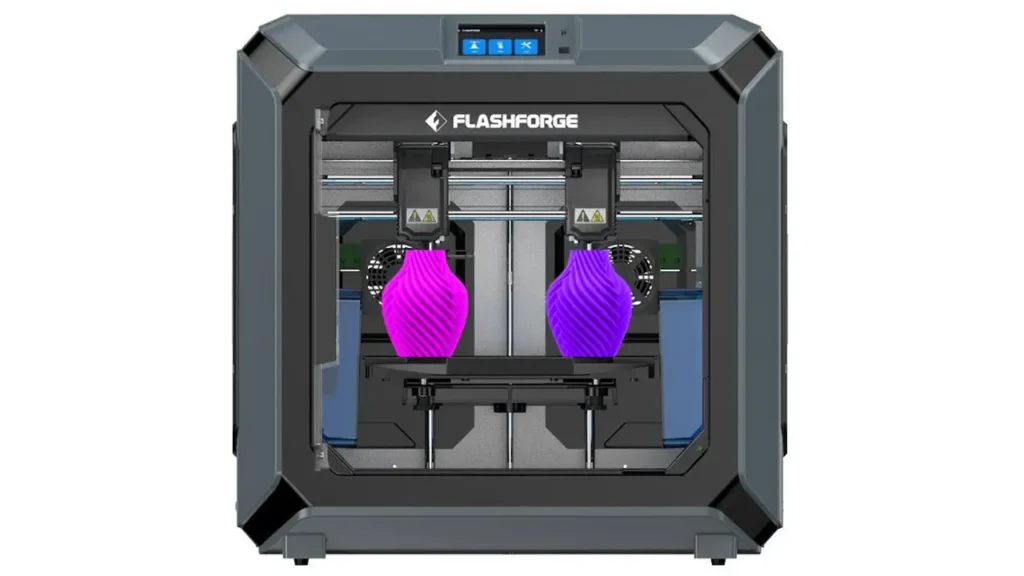
Not every Flashforge printer supports multi-material workflows, so let’s start by identifying which machines are built for the job. Flashforge creator 3 multi material capabilities are among the most well-known in the lineup, but there are several strong options.
Flashforge Creator 3 The Creator 3 is a workhorse dual-extruder FDM printer designed for professionals and serious hobbyists. It features two independent extruders (IDEX — Independent Dual Extruder System), which means each extruder moves completely independently on the X-axis. This allows for mirror mode, duplication mode, and true multi-material printing without oozing cross-contamination between nozzles.
Flashforge Creator 5 The Creator 5 steps things up considerably. With a larger build volume and an upgraded IDEX system, it’s designed for industrial-grade multi-material workflows. It supports a wide range of engineering-grade filaments and features enhanced thermal stability, making it suitable for demanding material combinations.
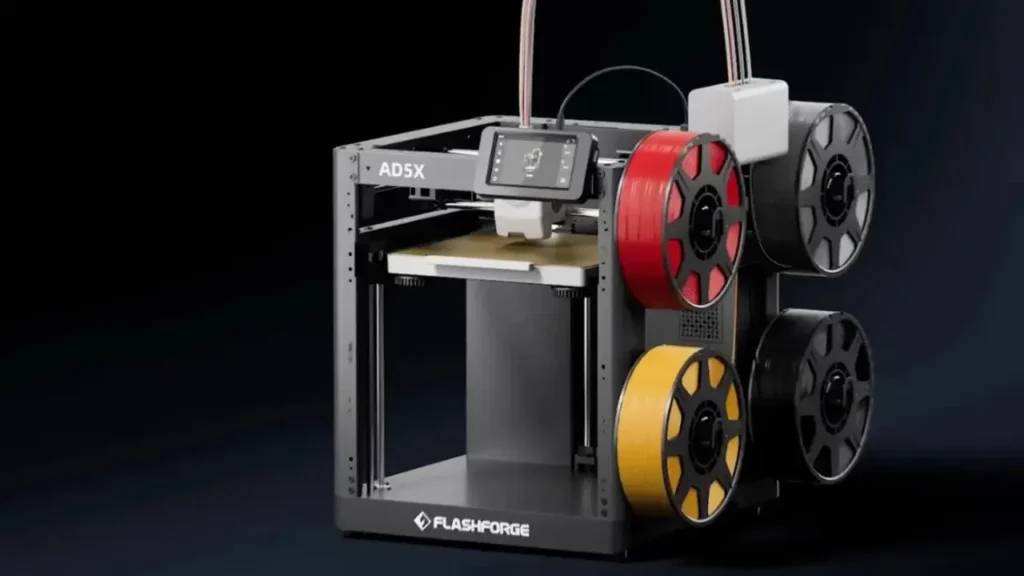
Flashforge Adventurer 5X The Adventurer 5X is a more accessible, enclosed desktop printer with a quick-swap nozzle system. While it doesn’t use a full IDEX configuration, it supports multi-color and multi-material printing through its advanced toolhead design and integration with FlashPrint 5.
Here’s a quick comparison to help you choose:
| Feature | Creator 3 | Creator 5 | Adventurer 5X |
|---|---|---|---|
| Extruder Type | IDEX (Independent) | IDEX (Independent) | Single toolhead / quick-swap |
| Build Volume | 300 x 250 x 200 mm | 400 x 350 x 500 mm | 220 x 220 x 220 mm |
| Max Nozzle Temp | 240°C | 300°C | 280°C |
| Enclosure | Yes | Yes | Yes |
| Supported Slicer | FlashPrint 5 | FlashPrint 5 | FlashPrint 5 |
| Best For | Pro / Dual material | Industrial / Large parts | Desktop / Hobbyist |
3. Understanding Dual Extrusion Technology
Before diving into setup, it really helps to understand what’s happening inside the machine. Flashforge dual extrusion setup is built around a concept that sounds simple but requires precise coordination: two separate nozzles, each fed by its own filament, working together on a single print.
How IDEX Works
In a standard dual extruder system, both nozzles are mounted on the same carriage and move together. IDEX (Independent Dual Extruder) takes this further by giving each extruder its own motor and carriage on the X-axis. This means:
- Extruder 1 (Left) can be printing your main object while Extruder 2 (Right) parks itself and stays idle — reducing ooze and stringing from the inactive nozzle.
- Both extruders can work simultaneously in duplication or mirror modes, effectively doubling production speed for identical parts.
- The printer can switch between extruders mid-layer to deposit different materials or colors at precise locations.
Synchronization and Offset Calibration
The most critical step in any dual extrusion setup is the nozzle offset calibration. If the two nozzles aren’t perfectly aligned, seams and misalignment will appear where materials meet. Flashforge printers include a built-in calibration wizard in FlashPrint that walks you through this process using a test pattern — more on that in the printer-specific sections below.
Flachforge Filament
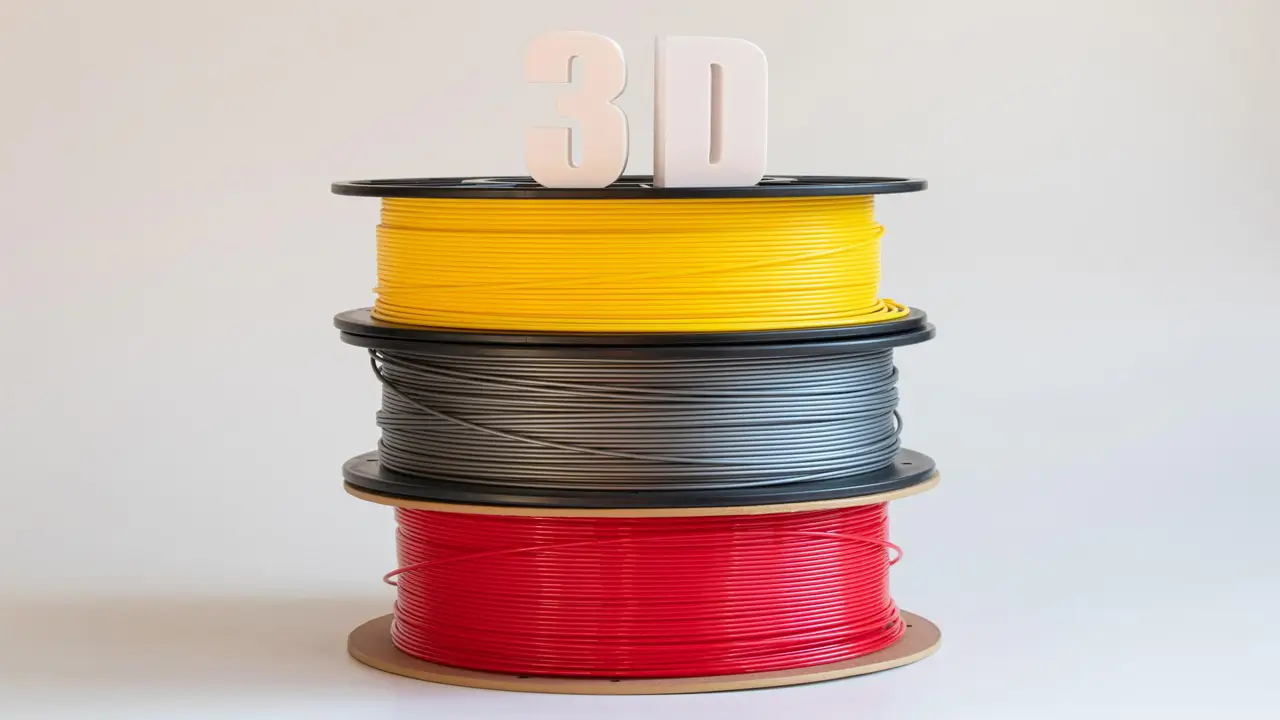
Premium quality filaments for reliable 3D printing. Wide range of materials including PLA, PETG, ABS, and specialty filaments optimized for consistent extrusion and excellent print results.
- • PLA, PETG, ABS Options
- • Precise Diameter Control
- • Tangle-Free Spools
- • Vibrant Colors
4. How to Print Multiple Colors on a Flashforge 3D Printer
One of the most popular reasons people explore how to print multiple colors on a 3D printer is aesthetics — producing eye-catching models with two or more colors, logos with contrasting backgrounds, or figurines with painted-style detail. Here’s how Flashforge makes it possible.
Method 1: Dual Extruder with Pre-Colored Filaments
This is the most straightforward approach. You load one color into Extruder 1 and another into Extruder 2, then use FlashPrint to assign different parts of the model to different extruders. The slicer handles all the toolpath switching automatically.
Method 2: Color Change via G-Code Pause
For single-extruder printers or for models that need more than two colors, you can insert a pause command (M600 or M0) at a specific layer height in your G-code. When the printer pauses, you manually swap the filament and resume. FlashPrint 5 allows you to set these pause points directly in the interface without editing raw G-code.
Method 3: Painted Multi-Material Assignment in FlashPrint
FlashPrint 5 introduced a model painting tool that lets you “paint” surfaces of an STL file with different extruder assignments. This is fantastic for single-body models where you want color transitions that aren’t defined by separate mesh objects.
5. Flashforge Creator 3 Multi Material Workflow
Let’s get practical. The Flashforge Creator 3 multi material workflow is one of the most reliable dual-extrusion experiences in the mid-range market. Here’s a step-by-step breakdown:
Step 1: Load Filaments
- Power on the printer and navigate to Filament > Load on the touchscreen.
- Select Left Extruder, set the target temperature for your material (e.g., 200°C for PLA), and feed the filament through the guide tube until it flows from the nozzle.
- Repeat for the Right Extruder with your second material.
Step 2: Prepare Your Model in FlashPrint
- Open FlashPrint 5 and load your dual-material STL (or two separate STL files for each extruder).
- Assign each object or part to Extruder 1 or Extruder 2 using the object properties panel.
- Enable the Purge Tower (also called Wipe Tower) to clean the nozzle between material switches.
Step 3: Nozzle Offset Calibration
- Go to Tools > Calibration > Dual Extrusion Calibration.
- Print the calibration pattern and use the printed result to enter your X/Y offset values.
- Save and verify with a second test print if needed.
Step 4: Slice and Print
- Set your layer height, infill, support settings, and speeds as normal.
- Export to a .gx or .g file and send to the printer via USB, Wi-Fi, or Ethernet.
- Monitor the first few layers carefully to make sure both extruders are priming correctly.
Common Mistakes to Avoid
| Mistake | Why It Happens | Fix |
|---|---|---|
| Color bleed / contamination | Purge tower too small | Increase purge volume in FlashPrint |
| Layer misalignment at seams | Poor nozzle offset calibration | Re-run calibration wizard |
| Stringing from idle nozzle | Retraction too low | Increase retraction distance/speed |
| First layer adhesion failure | Bed not level / offset wrong | Re-level bed, check Z-offset |
6. Flashforge Creator 5 Setup Guide
The Creator 5 targets industrial users, but the flashforge creator 5 setup guide is surprisingly approachable once you understand the machine’s design philosophy. Its larger build volume and high-temperature capabilities make it ideal for engineering-grade dual-material prints.
Initial Machine Preparation
- Unbox and place the printer on a stable, level surface. The Creator 5 is a heavy machine — plan accordingly.
- Install the build plate and apply the appropriate surface treatment for your materials (PEI sheet recommended for most filaments).
- Connect to power and complete the first-boot setup wizard on the touchscreen.
Bed Leveling
The Creator 5 features automatic bed leveling with a 49-point mesh compensation system. To run it:
- Navigate to Tools > Leveling > Auto Level.
- The printer will probe all 49 points across the bed and generate a compensation mesh.
- Fine-tune the Z-offset using the manual adjustment option afterward for first-layer accuracy.
Loading Materials
- Preheat both extruders to the target temperatures for your chosen materials.
- Feed filament through the Bowden-style PTFE tubes (on the bowden variant) or directly into the direct-drive extruders depending on your configuration.
- Purge each nozzle until clean, consistent filament flows out.
Key Settings for Creator 5 Multi-Material Prints
- Use an enclosure temperature of 45–50°C for ABS/ASA combinations to prevent warping.
- Enable the Ooze Shield in FlashPrint when printing materials with very different temperatures.
- For large prints, consider enabling sequential printing to reduce toolhead travel distance.
Polimerukr.com
Ukraine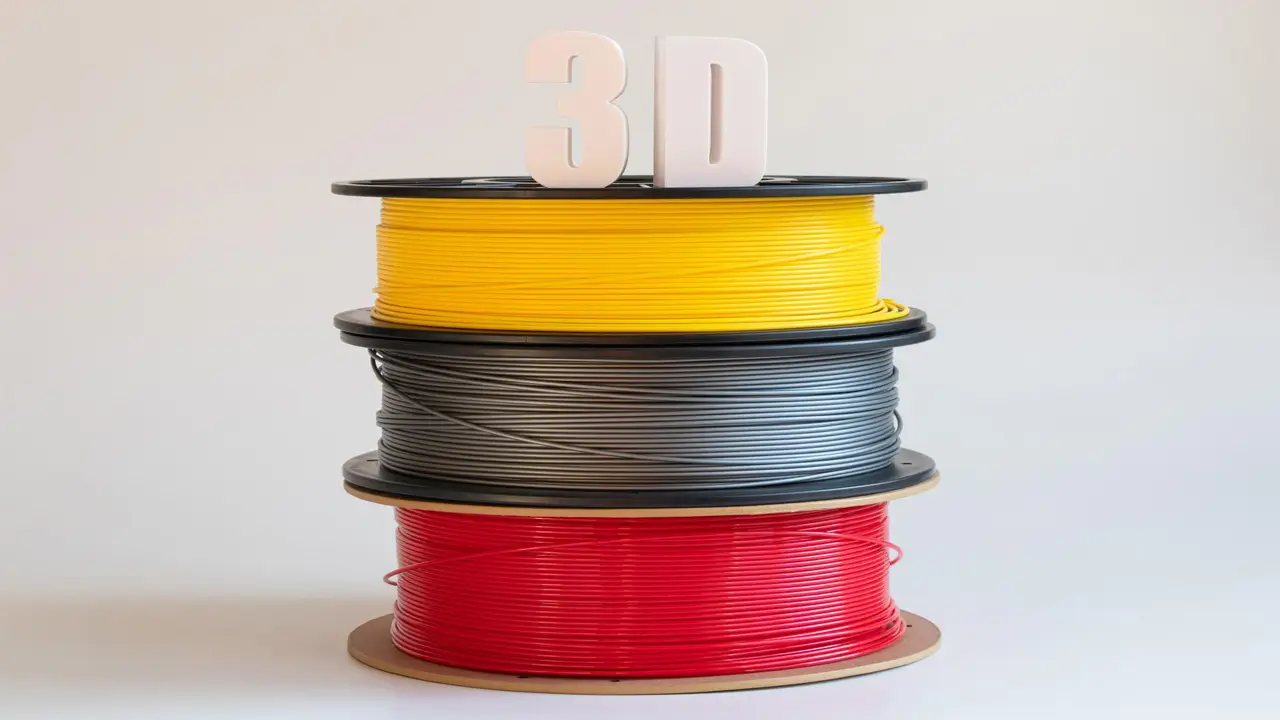
3D Printing Materials & Supplies
Your trusted source for high-quality 3D printing materials in Ukraine. Wide selection of filaments, resins, and accessories for all printer types with fast local shipping.
7. Adventurer 5X Multi-Color Printing Setup
The Flashforge Adventurer 5X multi color printing experience is a bit different from the Creator series. The AD5X is primarily a single-toolhead printer with a modular nozzle system, which means it approaches multi-material printing differently — through layer-based color changes and a compatible multi-filament system rather than true simultaneous dual extrusion.
Limitations to Know First
- The AD5X does not have an IDEX system, so true simultaneous dual extrusion is not supported.
- Multi-color printing is achieved via filament change at designated layer heights.
- The AD5X works best with two-color models where color transitions happen at distinct horizontal boundaries.
Setup for Multi-Color Printing
- Install the desired nozzle using the quick-swap system (0.25mm for fine detail, 0.4mm for standard, 0.6mm for speed).
- Load your primary filament and verify extrusion is clean.
- In FlashPrint 5, identify the layer height where you want the color change and insert a pause/filament change command.
Pro Tips for AD5X Multi-Color Results
- Plan your model orientation so color transitions happen at clean horizontal lines — this minimizes visible blending zones.
- Use the Filament Runout Sensor to your advantage: some users intentionally use short filament lengths to trigger a controlled swap.
- The AD5X’s enclosed chamber maintains consistent temperatures, which helps prevent delamination at color-change layers.
- For best color separation, always purge generously before resuming — the built-in purge tower option in FlashPrint handles this automatically when enabled.
8. Best Dual Extruder Settings for Quality Prints
Getting great results from dual extruder 3d printing settings is as much about the slicer numbers as it is about hardware. Here’s a practical reference for the most impactful parameters:
Temperature Settings
Each extruder should be set to the optimal temperature for its specific filament, not a compromise between the two. For example, if Extruder 1 is running PLA at 200°C and Extruder 2 is running PVA at 210°C, set them independently — FlashPrint 5 supports per-extruder temperature control.
Retraction Settings
Retraction is critical for preventing ooze from the idle nozzle contaminating your print. Recommended starting points:
| Material | Retraction Distance | Retraction Speed | Standby Temp Drop |
|---|---|---|---|
| PLA | 1.5 – 2.5 mm | 40 – 60 mm/s | –20°C |
| ABS | 2.0 – 3.0 mm | 40 – 50 mm/s | –20°C |
| PVA | 2.0 – 4.0 mm | 25 – 35 mm/s | –30°C |
| TPU | 1.0 – 2.0 mm | 20 – 30 mm/s | –15°C |
| HIPS | 2.0 – 3.5 mm | 40 – 55 mm/s | –20°C |
Print Speed
Reduce print speed when switching materials. A speed of 30–40 mm/s during the first few perimeters after a toolchange gives the new extruder time to stabilize temperature and flow, significantly improving seam quality.
Standby Temperature
When an extruder is idle, FlashPrint can automatically reduce its temperature to a standby value to minimize oozing. A drop of 15–30°C below active printing temperature is typically effective without causing heat-soak delays on resumption.
Flashforge AD5X
Multicolor 3D Printer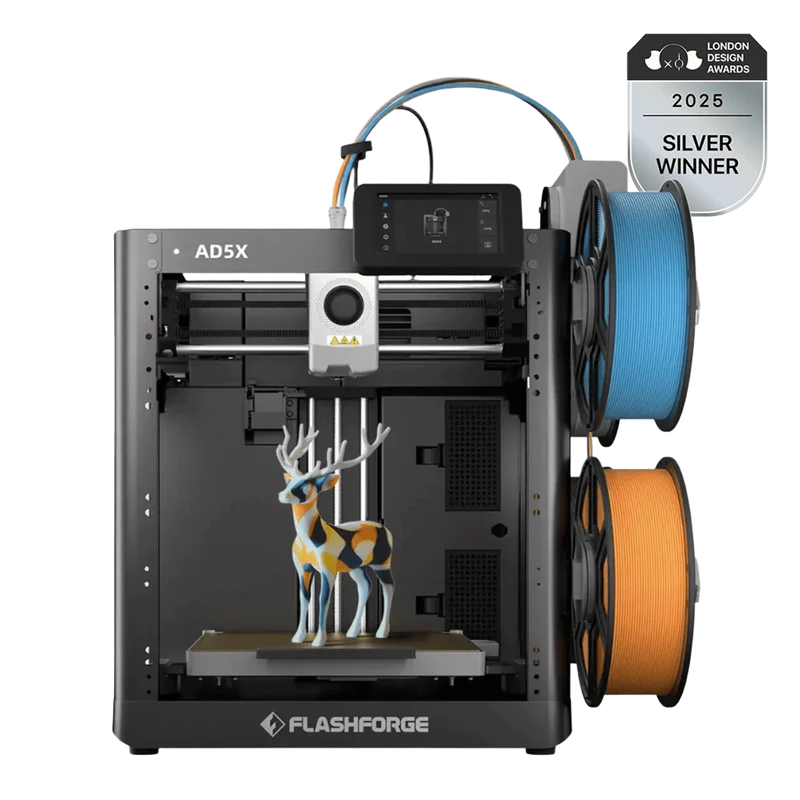
Multi-Material FDM Printer
Advanced multicolor 3D printer from Flashforge. Independent dual extrusion, vibrant color combinations, and reliable performance for creative projects and professional prototypes.
9. Printing with Different Materials Together
This is where Flashforge multi material printing really earns its value. Combining 3d printing different materials together unlocks capabilities that single-material prints can never achieve. Here are the most useful material pairings and what you need to know about each:
PLA + PVA (Most Popular for Supports)
PVA (Polyvinyl Alcohol) is a water-soluble filament that works perfectly as a support material for PLA. After printing, you simply submerge the part in warm water and the PVA dissolves away — leaving behind perfectly clean support interfaces that would be impossible to remove manually from complex geometries.
Key tips:
- PVA is highly hygroscopic (absorbs moisture from air rapidly). Always store it in a sealed dry box and use a filament dryer before and during printing.
- Keep PVA at its active print temperature only when extruding — use aggressive standby temperature drop (–30°C) to prevent degradation while idle.
- PLA prints at 190–220°C, PVA at 185–210°C — these ranges are compatible.
ABS + HIPS (Classic Industrial Combination)
HIPS (High Impact Polystyrene) is soluble in Limonene, a citrus-based solvent, making it an ideal support material for ABS. Both materials print at similar temperatures (230–250°C for ABS, 220–240°C for HIPS) and require an enclosed, heated chamber to prevent warping.
Key tips:
- Print both materials at enclosure temperatures of 40–50°C.
- Limonene bath time is typically 2–12 hours depending on support volume.
- HIPS also makes an excellent standalone material — it’s light, paintable, and machinable.
TPU + PLA (Flexible + Rigid)
Combining a flexible TPU part with a rigid PLA structure opens up possibilities for hinges, gaskets, grips, and wearable parts. The challenge here is the significant temperature difference (PLA at 200°C vs. TPU at 220–230°C) and TPU’s tendency to buckle during retraction.
Key tips:
- Use minimal retraction for TPU to prevent jamming.
- Print TPU at reduced speeds (20–30 mm/s) compared to PLA.
- Ensure the interface layers between materials are designed with interlocking geometry for mechanical strength — the two materials don’t chemically bond well.
Multi material 3d printing tips that apply to all combinations:
- Always print a calibration cube in dual-material mode before starting a long project.
- Enable the Ooze Shield for material pairs with large temperature differences.
- Increase the number of purge lines in the wipe tower when switching between materials that bleed color easily.
10. FlashPrint Settings & Color Change Techniques
No guide to flashprint multi material settings would be complete without a detailed look at FlashPrint 5 — Flashforge’s dedicated slicer that’s optimized for their entire printer lineup.
FlashPrint 5 Interface for Multi-Material
When you open a dual-material project in FlashPrint 5, the interface expands to show per-extruder controls:
- Extruder Assignment Panel: Assign any loaded STL object to Left (E1) or Right (E2) extruder with a single click.
- Per-Extruder Temperature: Set independent temperatures, fan speeds, and flow rates for each extruder.
- Support Settings: Choose which extruder handles supports — ideal for setting up PVA or HIPS as dedicated support material.
Purge Tower (Wipe Tower) Settings
The purge tower — sometimes called the wipe tower — is a small block printed alongside your model that the extruder deposits filament into each time it switches materials. This ensures any residual color or material from the previous extruder is cleared before the nozzle returns to your actual model.
Recommended purge tower settings in FlashPrint 5:
| Setting | Recommended Value | Notes |
|---|---|---|
| Purge Tower Width | 20 – 40 mm | Wider = cleaner, more waste |
| Purge Volume per Switch | 100 – 200 mm³ | Increase for dark-to-light transitions |
| Prime Pillar | Enabled | Alternative to tower, less waste |
| Ooze Shield | Enabled for mixed materials | Adds thin shell around model |
| Tower Position | Corner of build plate | Minimizes travel distance |
3D Printer Color Change Technique in FlashPrint
The 3d printer color change technique within FlashPrint 5 is handled through the Filament Change feature under Print Settings:
- Go to Print Settings > Advanced > Filament Change.
- Enter the layer number or height at which you want the change to occur.
- FlashPrint will insert a pause command into the exported G-code at that exact point.
- When printing, the machine will park the nozzle, beep, and wait for you to swap filament before resuming.
Minimizing Waste
Multi-material printing inherently generates some waste from the purge tower — but you can minimize it:
- Use Prime Pillar mode instead of a full wipe tower for simple two-color models with infrequent switches.
- Reduce purge volume for same-temperature material switches (e.g., PLA to PLA in a different color).
- Position the purge tower adjacent to the model to reduce travel and stringing on the way to and from purge.
- After printing, the purge tower is solid enough to recycle or grind for experimental uses.
Flachforge Filament
Premium quality filaments for reliable 3D printing. Wide range of materials including PLA, PETG, ABS, and specialty filaments optimized for consistent extrusion and excellent print results.
- • PLA, PETG, ABS Options
- • Precise Diameter Control
- • Tangle-Free Spools
- • Vibrant Colors
Wrapping It All Up
Flashforge multi material printing is one of the most rewarding capabilities in desktop 3D printing — but it rewards preparation. Whether you’re working with the industrial Creator 5, the versatile Creator 3, or the accessible Adventurer 5X, the fundamentals are the same: proper calibration, thoughtful material selection, smart slicer settings, and a bit of patience on your first few prints.
Start simple: try a two-color PLA print with a purge tower enabled. Once you’re comfortable with how material transitions look and feel, move on to functional material combinations like PLA+PVA or ABS+HIPS. From there, the door is wide open to prints that are stronger, more beautiful, and more useful than anything a single-extruder machine can produce.
The FlashPrint 5 slicer makes the whole workflow more approachable than many competing ecosystems, and Flashforge’s dedicated printer profiles take a lot of the guesswork out of temperature and retraction settings. With this guide as your foundation, you’re well-equipped to get the most out of every spool.
Happy printing — in as many colors as you like.
🇬🇧 English
This guide on Flashforge multi material printing is incredibly detailed and practical. I finally understood how to set up dual extrusion correctly. The site bestchina3dprinters.com consistently delivers high-quality, expert-level content.
🇪🇸 Español
Una guía muy completa sobre impresión multimaterial con Flashforge. Explica claramente cómo configurar la doble extrusión y trabajar con varios colores. El sitio es muy profesional y útil para usuarios de impresoras 3D.
🇸🇦 العربية
مقال احترافي يشرح الطباعة متعددة المواد باستخدام Flashforge بشكل واضح وسهل الفهم. المعلومات دقيقة ومفيدة جداً خاصة للمبتدئين والمحترفين. موقع مميز بمحتوى عالي الجودة.
🇨🇳 中文
这篇关于Flashforge多材料打印的文章非常专业,讲解清晰易懂。我学会了如何设置双喷头和多颜色打印。这个网站内容质量很高,非常值得关注。
🇫🇷 Français
Excellent guide sur l’impression multi-matériaux avec Flashforge. Les explications sont claires et bien structurées, особенно pour la configuration du double extrudeur. Le site est fiable et très informatif.
🇩🇪 Deutsch
Sehr hilfreicher Artikel über Multi-Material-Druck mit Flashforge. Die Einrichtung der Dual-Extrusion wird verständlich erklärt. Die Website bietet hochwertige Inhalte für 3D-Druck-Enthusiasten.
Discover more from bestchina3dprinters.com
Subscribe to get the latest posts sent to your email.